📖 User guide
How to use the dashboard and what each metric means. Updated 20.07.2026.
1 What this report is
Internal analytics dashboard for the 6 credit-group sites (credityes.es, credityes.ro, creditda.ro, creditwow.es, daikredit.kz, credityes.com.ua).
It brings together in one place:
- Google Ads data — spend, clicks, conversions, ROAS per campaign. Campaign-level totals go back 2 years (including paused and removed campaigns, so year-over-year comparison works); search-term breakdowns cover the last 180 days.
- CRM data — real revenue from a CSV export that Roman receives by email from DoAffiliate daily. A script parses each record by its UTM tag (
utm_campaign) and matches it to the corresponding Google Ads campaign — so each payout is attributed to the specific campaign that brought the customer. This is actual payouts, not the inflated Google Conv. Value. History goes back to May 2024. - Search terms — bucketed into categories relevant to the lending market (brand, competitors, préstamos, займы, etc.).
- Bidding config — strategy, target ROAS/CPA, budget for each campaign.
- Editing campaigns straight from the report (admin login) — you can change targets, budgets, bidding strategy, pause/enable without opening Google Ads UI.
- Period comparison — previous period / previous year / custom range, Google-Ads-style side-by-side values in the KPI row and the Overview table.
2 Account navigation
Tabs at the top — 6 sites + History + Guide (this page).

Click a tab to switch to that site's report. Auth state and filter selections are preserved across tabs — no need to log in again when moving from credityes.es to daikredit.kz.
3 Login, roles and encryption
Login is mandatory. Without it the page shows only a lock screen — every number, campaign name and chart is stored as encrypted ciphertext and cannot be read even through View Source or browser DevTools. After a successful login the server hands your browser the decryption key and the report renders.
There are two account roles:
- Admin (Roman, Emilia) — full access + editing: icons ✏️ 🔄 💰 ⏸ next to every campaign (edit target / swap strategy / edit budget / pause-enable). Changes are written to Google Ads and logged in History under your name.
- Viewer (shared team account) — sees everything, cannot edit. Edit icons are hidden and the server rejects any modification attempt from a viewer token. A grey VIEWER tag shows next to the name in the top-right corner.
Ask Roman to add a new user — it takes under a minute (name + email → generated password, admin or viewer).
4 Filters
Date from / Date to
The date range all metrics are computed over. The picker goes back up to 2 years (depending on how old the account is). Note: Cards / Heatmap / Table are built from search-term data, which only covers the last 180 days — for older dates use Overview and the KPI row, which have the full history. The default range on first open is the last 180 days.

Quick periods
Shortcuts: Yesterday · 7d · 30d · 90d · All.
Compare to
Google-Ads-style period comparison. Four modes:
- Off — no comparison.
- Previous period — the same number of days immediately before the current range (30d → the 30d before them).
- Previous year — the same calendar dates one year ago.
- Custom range — pick any two dates in the "Compare range" fields.
When comparison is on, the KPI cards and the Overview table show both values side by side — the current number on top, "was X" with a green/red delta badge underneath. Campaigns that only existed in the comparison period still appear in Overview as rows with current values of zero. If the comparison range predates the account's Google Ads history, cost-based deltas show "no data" instead of a misleading ↑100%.
Campaigns
Checkbox list — includes every campaign of the account: Search, PMax, Display, paused (⏸ icon) and removed. All ticked by default. Uncheck to exclude a campaign from all calculations.
Ad groups (collapsed)
Collapsed by default — click (click to expand). The list shows all ad groups belonging to the currently-selected campaigns.
Group cards by
- Campaign (default) — one card per campaign.
- Ad group — one card per ad group.
Sort cards by
Cost / Conv. value / ROAS / Conversions / Clicks / Name.
Status filter
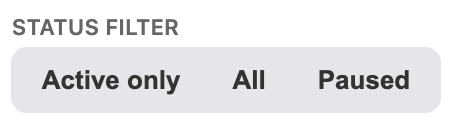
- All (default) — every campaign including paused and removed.
- Active only — only ENABLED campaigns.
- Paused — only paused ones.
View
Four modes: Cards (default) · Heatmap · Table · Overview. See §6b — Alternative views for what each one looks like.
Cards per row · Top categories shown
1 / 2 / 3 columns on wide screens. How many top categories to render inside a card before the "Show more" toggle — default 3.
Settings persist across tabs
Date range, Compare mode, View, Status filter, sorting and grouping are remembered in the browser — switch from credityes.es to daikredit.kz and back, and everything stays as you left it. Dates are clamped to each account's own data window if it is narrower.
5 Top KPI row

| Metric | What it means |
|---|---|
| Cost | Google Ads spend for the period |
| Google Conv. Value | Conversion value reported by Google — inflated by ML attribution |
| Google ROAS | Google Conv.Value / Cost — Google's optimistic estimate |
| 🎯 CRM Revenue (green border) | Real revenue from the DoAffiliate CSV |
| 🎯 REAL ROAS (CRM) | CRM Revenue / Cost — true return on ad spend |
| 🎯 REAL Profit (CRM) | CRM Revenue − Cost — true profit before other costs |
| Clicks · Conversions | Ad clicks and Google-reported conversions |
| % Cost Excluded | Share of spend on search terms already added as negatives |
| % Cost Added | Share of spend on search terms promoted to exact-match keywords |
Hover any KPI or per-card stat — a tooltip explains the exact meaning and formula. With Compare mode on, each card also shows the previous-period value ("was X") and a delta badge.
6 Campaign card (Cards view)
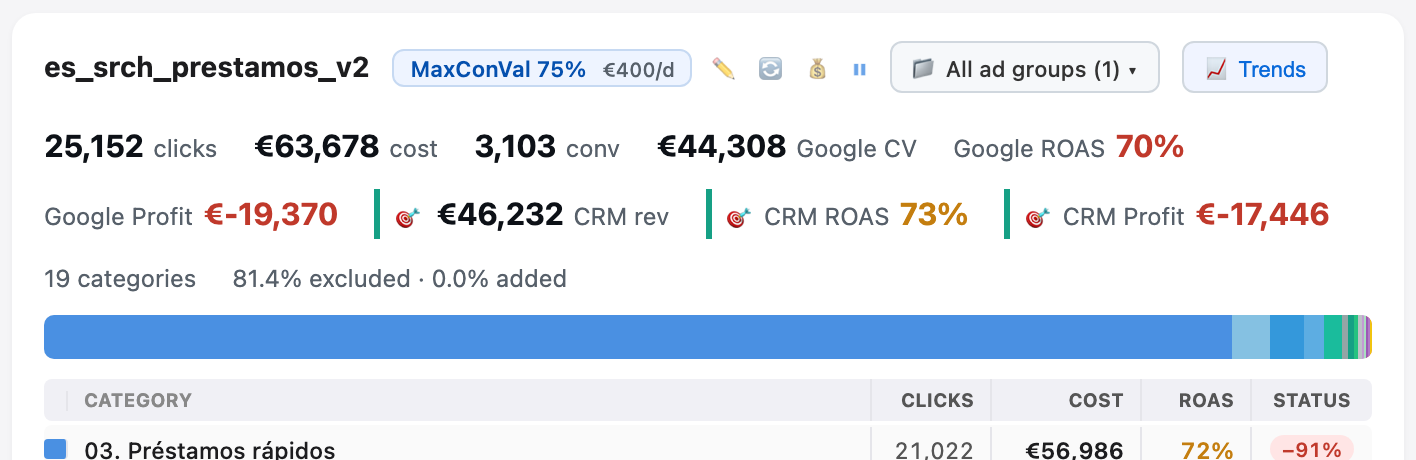
Card header
Campaign name on the left. Next to it — the bidding badge:
- tROAS 200% — Target ROAS with its target value
- tCPA €15 — Target CPA
- MaxConVal 70% — Maximize Conv. Value with a target ROAS hint
- MaxConv — Maximize Conversions without a target
- ⏸ MaxConv — grey = paused campaign
- MaxConv — amber = strategy has no target set (worth attention)
To the right of the badge:
- 📁 All ad groups (5) — pick specific ad groups for this card only (not the whole page).
- 📈 Trends — opens a modal with a daily line chart of categories (see §10).
Edit icons (admin role only)
- ✏️ — change Target ROAS or Target CPA.
- 🔄 — switch bidding strategy.
- 💰 — change the daily budget.
- ⏸ / ▶ — pause or enable.
Card stats
A single row: Clicks · Cost · Conversions · Google CV · Google ROAS · Google Profit · CRM Revenue · CRM ROAS · CRM Profit. CRM metrics have a green left border.
Split bar
The colored bar under the header shows how the campaign's spend splits across categories. One color = one category.
Category table
Top 3 categories (or as many as "Top categories shown" is set to) with clicks, cost, ROAS, status (how much of that category is excluded / added). The Show N more categories button expands the full list.
6b Alternative views: Heatmap, Table, Overview
The VIEW segmented control (in the filter panel) toggles how the report is drawn. You get the same underlying data displayed 4 different ways depending on what you're looking for.
Cards (§6 above)
Default view. One card per campaign with per-category breakdown, bidding badge, trends button, and edit icons.
Heatmap
Campaigns as rows, top search-term categories as columns. Each cell is coloured by that category's share of the campaign's spend — deeper green = more of the budget went there. Great for spotting "which campaigns spend the most on X category" across the account in one glance.

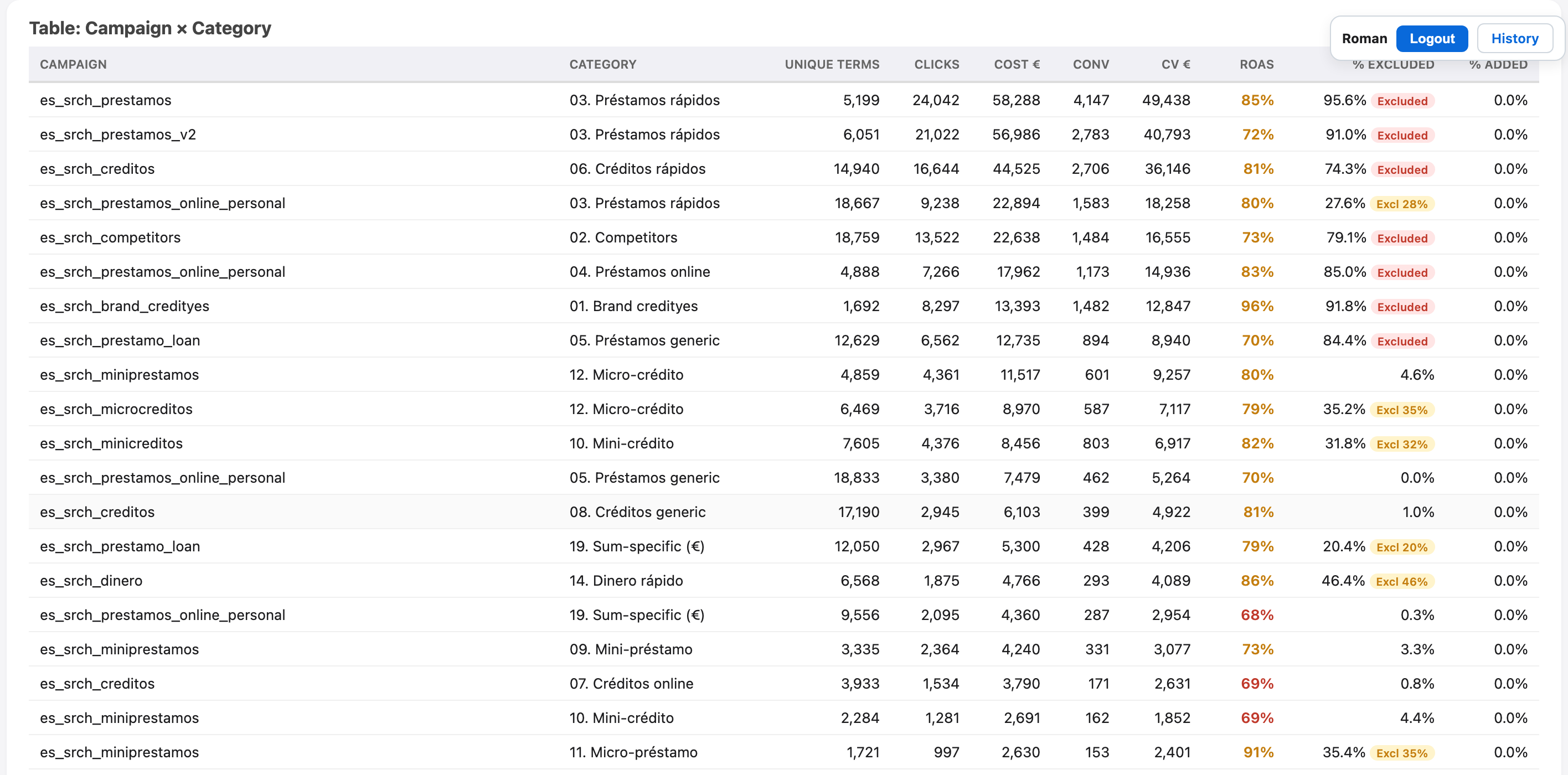
Table
Dense sortable table — campaigns as rows, categories as columns, showing cost. Same information as Heatmap but numeric instead of colour. Click any column header to sort. Best when you want exact numbers.
Overview — all campaigns incl. PMax
A single table with one row per campaign, including Performance Max campaigns (which don't appear in the other views because they don't expose search-term data). No search-term breakdown here — just aggregate numbers per campaign, the way you'd see them in the Google Ads UI's Campaigns tab, plus the CRM columns on the right.
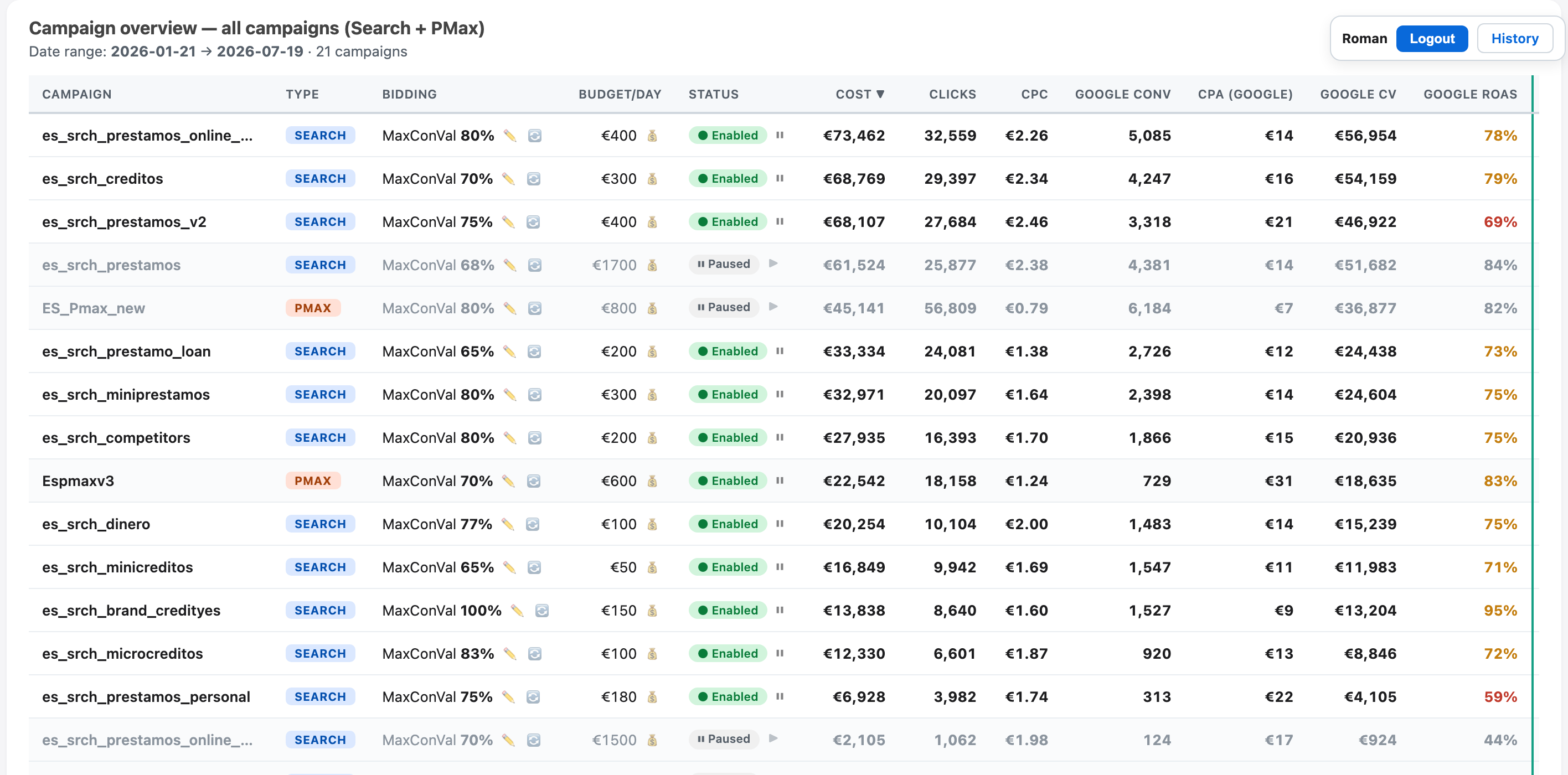
Columns:
- Campaign — name
- Type — SEARCH / PMAX / DISPLAY / etc.
- Bidding — strategy + target (e.g.
MaxConVal 70%,tROAS 200%,tCPA €15) - Budget/day — daily budget in euros
- Status — Enabled / Paused pill
- Cost · Clicks · CPC · Google conv · CPA (Google) · Google CV · Google ROAS — Google Ads reported metrics. CPC = Cost / Clicks, CPA (Google) = Cost / Google conversions.
- CRM purchases · CPA (CRM) · CRM revenue · CRM ROAS · CRM profit — real payouts from DoAffiliate (green vertical divider marks where Google stops and CRM starts). CPA (CRM) = Cost / CRM purchases — the true cost per real purchase.
Behaviour:
- Any column header can be clicked to sort — click again to reverse direction.
- Colour coding on ROAS columns: green ≥100% · amber 70-100% · red <70%.
- Paused campaigns are greyed out (respects the Status filter — hide them with "Active only").
- The TOTAL row at the bottom sums everything currently shown (CPC/CPA in TOTAL are computed from the total sums, not averaged).
- Overview respects the date range and status filter, but ignores the Campaign checkbox filter — it always shows every campaign for the account.
- With Compare mode on, every metric cell shows the previous value ("was X") with a delta badge, and campaigns that had spend only in the comparison period appear as extra rows.
7 Search-term categories
A script buckets search terms into categories specific to the lending market. Categories share the same numeric prefix across markets — only the label is translated. That's why bar colors and legends look consistent across all 6 reports.
| # | ES | RO | UA | KZ |
|---|---|---|---|---|
| 01 | Brand credityes | Brand | Brand | Brand |
| 02 | Competitors | Competitors | Конкуренти | Конкуренты |
| 03 | Préstamos rápidos | Împrumuturi rapide | Позики швидкі | Займы быстрые |
| 04 | Préstamos online | Împrumuturi online | Позики онлайн | Займы онлайн |
| 05 | Préstamos generic | Împrumuturi generic | Позики загальне | Займы общее |
| 06–08 | Créditos rápidos/online/generic | Credite … | Кредити … | Кредиты … |
| 09–12 | Mini/Micro préstamo/crédito | Mini/Micro | Міні/Мікро | Мини/Микро |
| 13 | Personal loans | Personal | Personal | Личные |
| 14–16 | Dinero rápido/online/generic | Bani … | Гроші … | Деньги … |
| 17 | ASNEF (bad credit) | Birou de credit | Погана КІ | Плохая КИ |
| 18 | Sin documentos | Fara acte | Без довідки | Без справки |
| 19 | Sum-specific (€) | Sum (RON) | За сумою (грн) | По сумме (тенге) |
| 20 | Bizum | — | — | — |
| 21 | Off-topic / Foreign | |||
| 23 | Other | |||
8 Editing campaigns

Once logged in, click the pencil / money / pause icon next to the bidding badge.
✏️ Change Target ROAS / CPA
Shows the current value. Enter the new one in % or €. Press Apply to Google Ads. Within 2–3 seconds the value is applied in Google Ads. On success the badge updates in-place. On error the message appears at the bottom of the modal.
Works for these strategies: TARGET_ROAS, TARGET_CPA, MAXIMIZE_CONVERSION_VALUE with target ROAS, MAXIMIZE_CONVERSIONS with target CPA.
💰 Change daily budget
Enter the new amount in euros. Modifies the underlying budget object (which is separate from the campaign) — so if the same budget is shared by several campaigns, the change affects all of them.
🔄 Change bidding strategy
Switches the campaign to a different strategy — e.g. from Maximize Conversions to Target ROAS. Available strategies in the dropdown:
- Target ROAS — requires a target ROAS value (%). Google bids to hit that ratio.
- Target CPA — requires a target CPA (€). Google bids to hit that cost per conversion.
- Maximize Conversion Value — target ROAS is optional. Without it, Google just maximises total conv value within the budget.
- Maximize Conversions — target CPA is optional. Without it, Google just maximises conversion count.
- Maximize Clicks (Target Spend) — no target needed. Google buys as many clicks as the budget allows.
- Manual CPC — you set bids yourself (keyword-level). Rarely useful for lending accounts.
⏸ / ▶ Pause / Enable
One click flips the status. No confirmation is asked — be careful.
9 History
The dedicated History tab at the top opens a page with a table of every change across all sites.
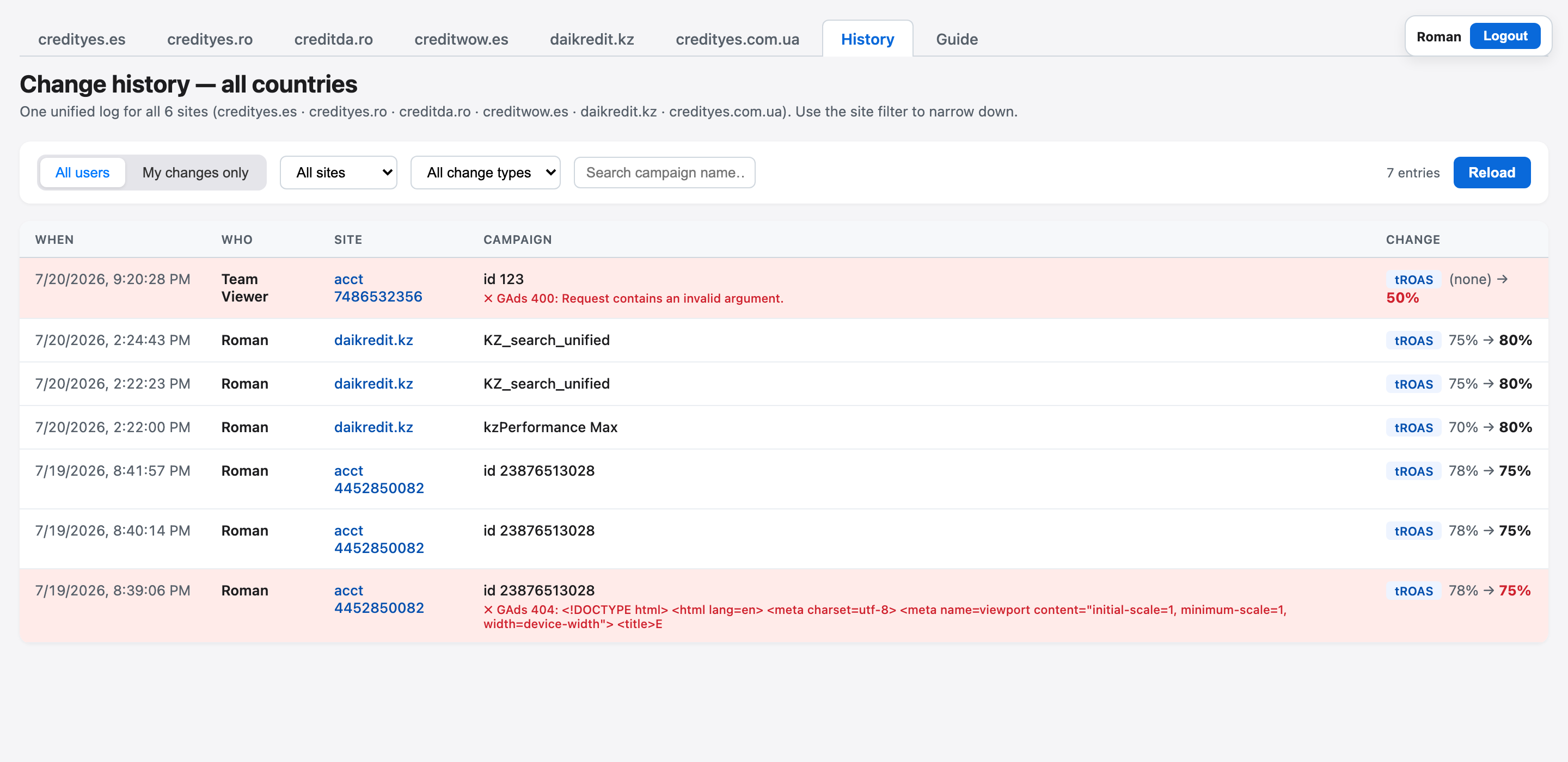
Columns:
- When — timestamp
- Who — who made the change (Roman / Emilia)
- Site — which site
- Campaign — campaign name
- Change — what changed:
tROAS: 78% → 75%
Filters:
- All users (default) / My changes only
- All sites → dropdown to narrow to one country
- All change types → tROAS / tCPA / Budget / Status
- Search campaign name — free-text filter
Failed change attempts (Google Ads rejected the mutation) are recorded too and highlighted in red.
10 Trends — daily chart
Click 📈 Trends on any card to open the chart modal.
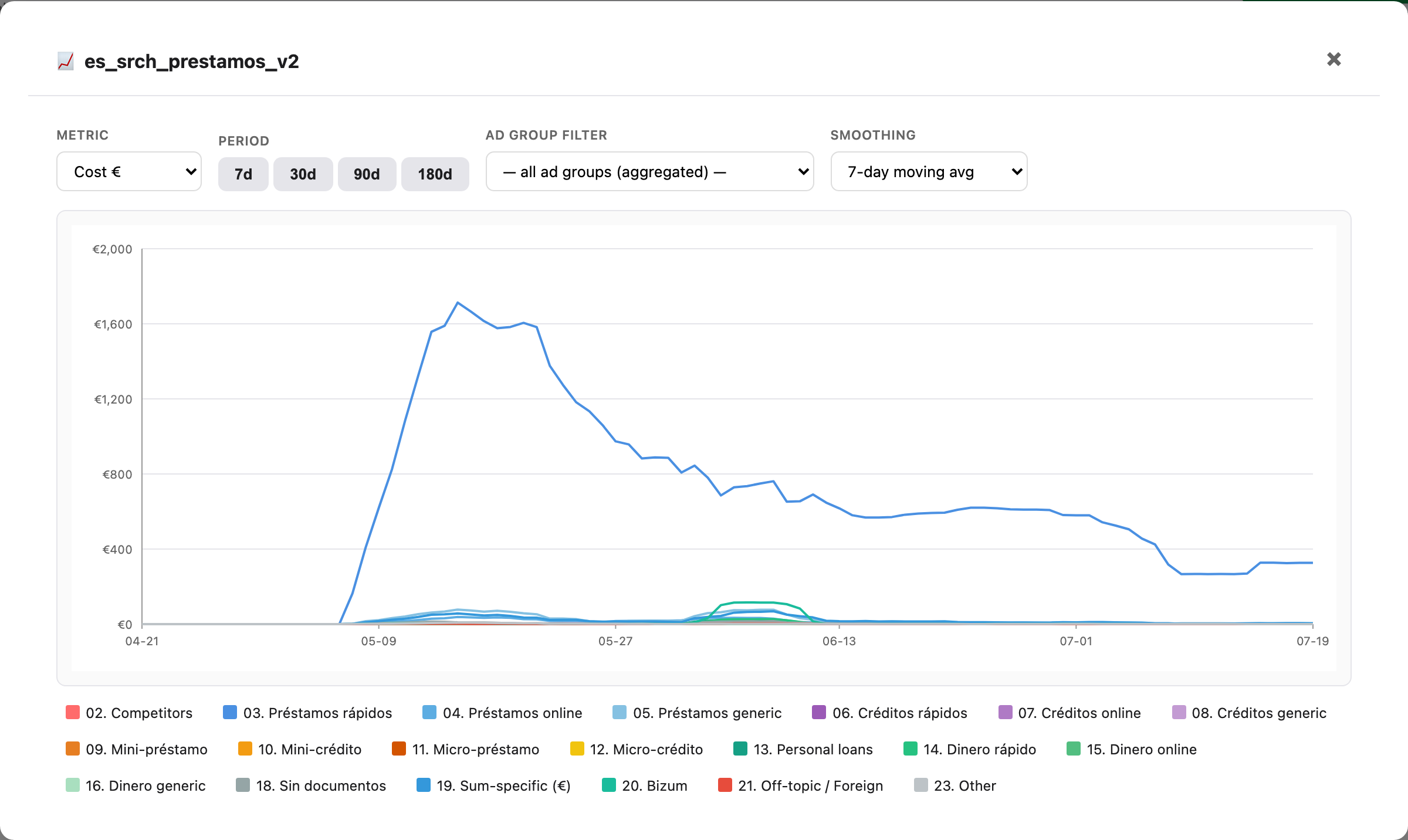
Shows daily spend or conversions per category for this campaign over 7 / 30 / 90 / 180 days. One line per category. Hover a line for the exact number on a given day.
11 See terms by category (XLSX)
The green button to the right of the report title downloads an Excel file with every unique search term over the last 180 days, bucketed by category with per-term cost.
Useful for negative-keyword hygiene: sort by cost, look at the top expensive terms in suspicious categories, add them as negative keywords in Google Ads.
12 Data refresh
- Automatic — Google Ads every 4 hours (01:20, 05:20, 09:20, 13:20, 17:20, 21:20 Kyiv time). CRM refreshes once per day at 09:20 — DoAffiliate only sends the report once daily. Two launchd jobs on Roman's Mac pull data, rebuild the encrypted HTML blobs, push to Cloudflare Pages and to the private GitHub repo. Even with 4-hour refresh, individual conversion counts can differ from Google Ads UI by ~10-20% because Google keeps re-attributing conversions for 24-72 hours after they happen — that's a Google-side lag, not our pipeline.
- Date range in the report header — "Date range available: 2026-01-19 — 2026-07-17" — tells you which day the data goes up to.
- Manual refresh: if you need fresh data mid-day — Roman can run in the terminal:
bash ~/credityes-es-report/scripts/update.sh.
13 Troubleshooting
The page doesn't open, or looks outdated / missing new features
The browser is serving a cached copy. In order of escalation: Cmd+Shift+R (hard refresh) → open in an incognito window → DevTools (F12) → right-click the reload button → "Empty Cache and Hard Reload". The reports are large files, so plain refresh sometimes isn't enough.
Login is rejected with the right password
The token may have expired (>30 days). Just log in again.
Numbers differ slightly from the Google Ads UI
Two normal reasons: (1) data here is a snapshot refreshed every 4 hours; (2) Google itself keeps re-attributing conversions for 24–72 hours after they happen, so even a fresh pull won't match a live screenshot taken later the same day. Figures converge after 2–3 days.
Error when editing
Google Ads may reject a mutation (e.g. Target ROAS below its minimum, or campaign is archived). The exact error is shown at the bottom of the modal.
Missing CRM data for some dates
CRM may have gaps if a DoAffiliate report wasn't sent. Compare the date coverage across neighboring tabs.
Add a new user
Ask Roman — he seeds a new user into Cloudflare KV with one command (~30 seconds).
Log out
Click Logout in the top-right widget.
14 Privacy & security
- All data in the pages is AES-256-GCM encrypted. Someone who has the URL but no account sees only a lock screen; View Source / DevTools reveal nothing but ciphertext. The decryption key lives in Cloudflare Worker Secrets and is handed to the browser only after a successful login.
- The report is hosted on Cloudflare Pages (
credit-report-5ty.pages.dev); source code and data also live in a private GitHub repo as backup (Roman-only access). - Two roles: admin (can edit campaigns) and viewer (read-only — the server rejects any write from a viewer token).
- Passwords are stored hashed in Cloudflare KV: PBKDF2-SHA256, 100,000 iterations, unique salt per user. Nobody — including Roman — can read a password back.
- The Google Ads API token stays only on Roman's Mac — it is never committed to any repo or embedded in any page.
- All campaign edits require a valid signed session token, verified server-side; every change (and every failed attempt) is logged in History with the author's name.
- HTTPS everywhere — Cloudflare Pages + Cloudflare Worker.